March 2026

🫡 Acefone March 2026 Product Release Notes
Interactions Hub 📨
1. Full-Screen Incoming Call on Android
For: Agents
What’s new?
Android Agent Mobile App now supports full-screen incoming call notifications even when the device is locked.
What are the benefits?
Ensures agents never miss calls and provides a more native, seamless calling experience.
How to use?
Receive an incoming call on the Android app—the full-screen interface will appear automatically.
2. DID-Based Call Routing via Number Trunk
For: Admin
What’s new?
Customer calls can now be routed via DID number trunk when number-wise trunk configuration is enabled specifically for 140/160 use cases where dual-leg calling is required. Agent leg can be dialled from 080 (Agent Trunk) and Customer Leg from 140/160 Trunk.
What are the benefits?
Provides more granular control over call routing and improves call handling efficiency.
How to use?
Enable number-wise trunk configuration and assign DID-based routing in trunk settings.
3. Improved Extension Re-Registration Handling
For: Agents
What’s new?
Enhanced handling of extension re-registration for active sessions on the desktop softphone app.
What are the benefits?
Reduces call disruptions and improves overall session stability.
How to use?
No action required—this improvement works automatically in the background.
4. CDR API Integration in Softphone
For: Agents
What’s new?
CDR API integration added to Webphone and Desktop softphone for more synchronous call data behavior.
What are the benefits?
Ensures more accurate and real-time call data visibility across systems.
How to use?
Access call logs and reports as usual—data will now reflect improved synchronization.
5. Automatic Cache Refresh in Interaction Hub
For: Agents
What’s new?
Interaction Hub cache now clears automatically when users or contacts are updated or deleted on the platform via event triggers.
What are the benefits?
Ensures real-time data consistency without requiring manual refresh or re-login.
How to use?
Update or delete users/contacts—changes will reflect instantly.
Insights 🚀
1. SIP & Streaming Events in Call Flow
For: Users/Admin/Supervisor
What's new?
Call flow now includes SIP trunk and voice streaming events.
What are the benefits?
Gives you a complete, end-to-end view of every interaction, also reflected in your downloaded reports.
How to use?
Navigate to the Call Detail page and view the updated Call Flow section.
2. Split Call Type View for Dialer Calls
For: Users/Admin/Supervisor
What's new?
Dialer's outbound and inbound calls are now displayed separately in the "Call Type" widget on the CPD.
What are the benefits?
Makes it easier to monitor and distinguish call volumes at a glance.
How to use?
Go to CPD and check the Call Type widget to view split dialer call data.
3. Agent Log Access
For: Users/Admin/Supervisor
What's new?
A dedicated Agent Log button has been added to the Agent Performance Dashboard.
What are the benefits?
Gives you a seamless, structured view — from performance metrics straight through to detailed logs, all in one place.
How to use?
Open the Agent Performance Dashboard and click the Agent Log button to access detailed logs.
4. Broadcast Call Journey
For: User/Admin/Supervisor
What's new?
The full broadcast call journey is now captured in the CDR alongside the dialer call.
What are the benefits?
When a client responds to a broadcast and gets transferred to an agent, you can trace the entire interaction from start to finish in a single record.
How to use?
Open CDR/Call Logs and look up the broadcast call record to view the complete journey.
5. Lightning-Fast Downloads
For: User/Admin/Supervisor
What's new?
Download limit raised from 2 lakh to 50 lakh records, and download time reduced from ~1.5 hours to just 50 seconds.
What are the benefits?
A 98% reduction in download time and a 25x increase in capacity — making large-scale data exports virtually instant.
How to use?
Go to Insights, apply your desired filters, and click Download to experience the faster export.
6. Call Log Filter Overhaul
For: Users/Admin/Supervisor
What's new?
Call Log now includes all the important filters that were previously only available in the old CDR.
What are the benefits?
Finding and analyzing your data is now faster, simpler, and more powerful than ever before.
How to use?
Open Call Logs in Insights and use the expanded filter panel to refine your data.
7. Unified Interaction Navigation
For: Users/Admin/Supervisor
What's new?
Insights now features a dedicated navigation bar that separates interactions by medium — Calls, SMS, and Video.
What are the benefits?
Makes it effortless to switch between and analyze each channel independently.
How to use?
Use the navigation bar at the top of the Insights module to switch between Calls, SMS, and Video interactions.
8. Call Log Actions
For: Users/Admin/Supervisor
What's new?
A new Actions column has been added to Call Logs with three key options — Add Contact, Add Note, and Block Number.
What are the benefits?
Quick access to key actions directly from the log without navigating away.
How to use?
Open Call Logs in Insights, locate any record, and use the Actions column on the right.
9. Revamped Call Detail Page
For: Users/Admin/Supervisor
What's new?
The Call Detail page has been redesigned with a cleaner, more intuitive layout.
What are the benefits?
Makes it easier to read and navigate call information at a glance.
How to use?
Click on any call record in Call Logs to open the redesigned Call Detail page.
10. Translate & Export Transcripts
For: Users/Admin/Supervisor
What's new?
The PCA module now supports transcript translation and export.
What are the benefits?
Convert transcripts from any language to English with a single click, and export them directly for your records or further analysis.
How to use?
Open any transcript in the PCA module, click Translate to convert to English, and use the Export option to download.
11. CSAT Log in Insights
For: Users/Admin/Supervisor
What's new?
CSAT is now fully available within Insights featuring a CSAT Dashboard, detailed Logs, and a Detail Modal.
What are the benefits?
A fully structured experience to track every CSAT response and dive deeper into individual entries, all in one place.
How to use?
Navigate to the CSAT section in Insights to access the Dashboard, Logs, and Detail Modal.
Bug Fixes 🐞
- DID Number Mismatch in Downloaded Reports
Fixed the issue where DID numbers displayed correctly on the CDR Dashboard but appeared mismatched in the downloaded report. Downloaded reports now reflect accurate DID number data. - Incomplete Data in Missed Call Report
Fixed the issue where certain time periods were showing incomplete data in the Missed Call report. All time periods now display complete and accurate data. - Archive CDR Download Error
Fixed the issue where Archive CDR downloads were throwing a "No data found" error for certain date ranges. Downloads now work correctly across all date ranges. - Agent Call Log Visibility
Fixed the issue where agents were able to view each other's call logs in the new Call Logs section. Each agent can now only access their own records.
API and Webhook
1. Enable Custom Mapping in API Dialplan for All Customers by Default
For: Users/Admin/Supervisor
What's New?
The Custom Mapping feature in API Dialplan is now enabled by default for all customers. Previously, this feature had to be enabled manually from the backend after a request and CMC approval. With this update, both new and existing customers will automatically have access to Custom Mapping without requiring any manual intervention.
This change ensures that customers can integrate their existing API formats with the platform without needing backend configuration changes. Existing configurations will continue to function as expected, ensuring a seamless transition.
What are the benefits?
- Improved Customer Experience: Customers can use Custom Mapping without raising manual requests.
- Faster Onboarding: New customers can immediately configure API Dialplan using their existing API formats.
- Reduced Operational Overhead: Eliminates the need for backend intervention and CMC approvals.
- Seamless Integration: Customers can continue using their legacy or proprietary API formats without modifying their systems.
How to use?
- Configure API Dialplan: Set up the API Dialplan as per the call routing requirement.
- Use Existing API Format: Send API responses in your existing or preferred JSON format.
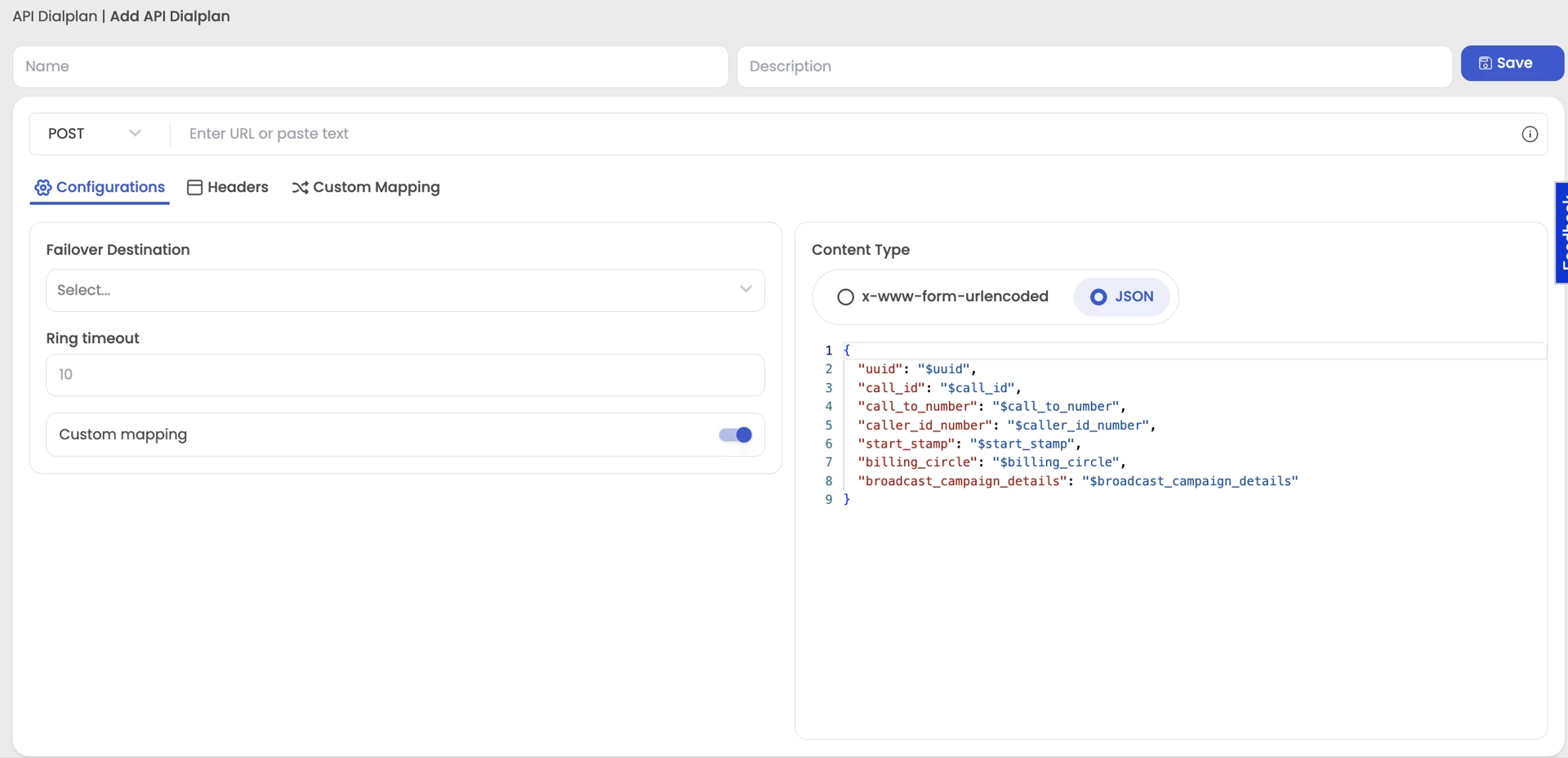
- Define Custom Mapping: Map your API response fields to the required Infocomm routing parameters (such as agent, extension, mobile number, IVR, queue, etc.).
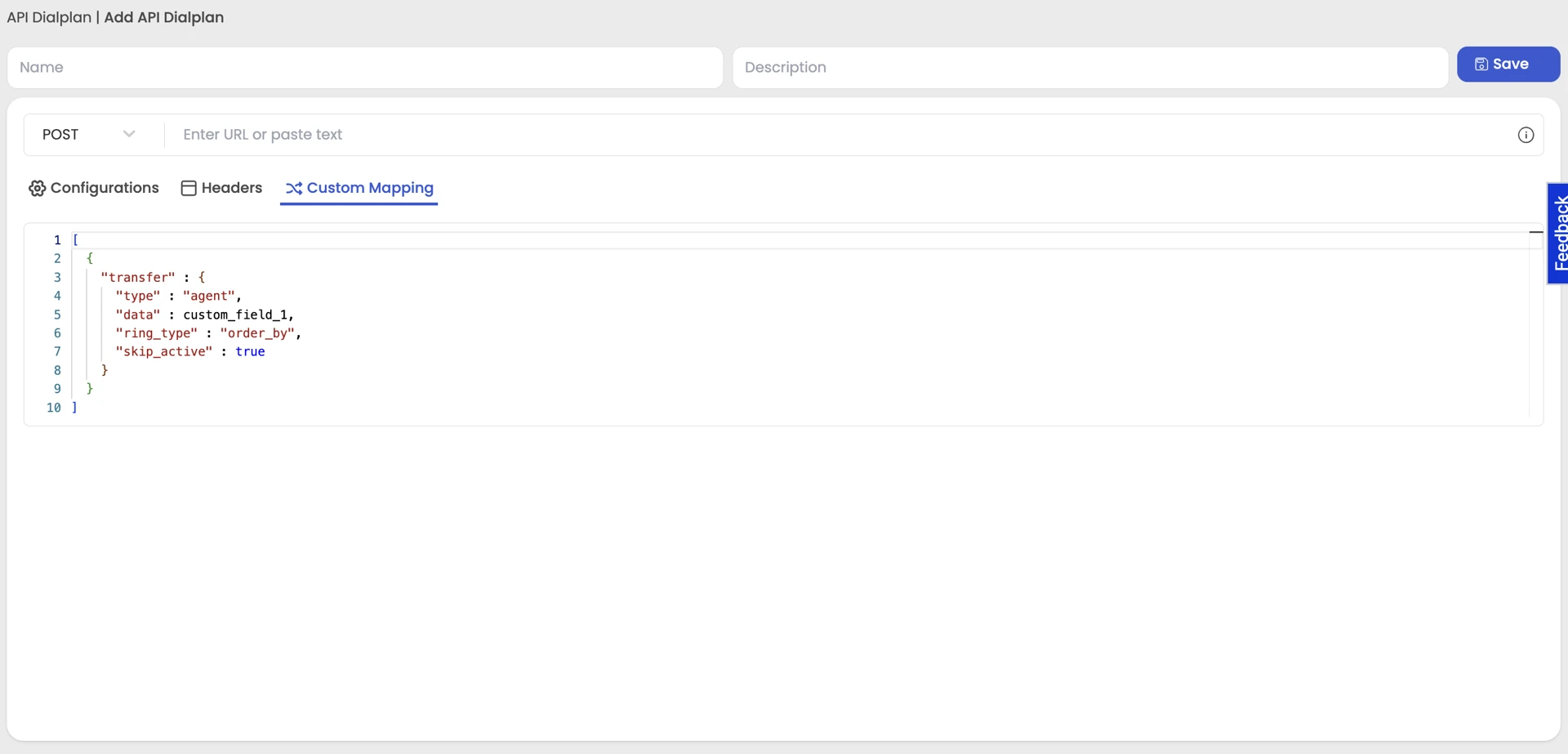
- Call Routing Execution: Once the mapping is configured, Infocomm will automatically interpret the mapped fields and route the call accordingly.
3. Add Campaign Name/ID in Dialplan Response Body for Broadcast Segmentation
For: Users/Admin/Supervisor
What's New?
The API Dialplan response has been enhanced to include broadcast campaign details for calls initiated through broadcast workflows. Two new fields—broadcast_campaign_name and broadcast_campaign_id—are now available in the API response under a new object called broadcast_campaign_details.
This enhancement enables customers to identify the specific broadcast campaign responsible for triggering a call directly from the dialplan response.
Updated Response Example:
{
  "uuid": "$uuid",
  "call_id": "$call_id",
  "call_to_number": "$call_to_number",
  "caller_id_number": "$caller_id_number",
  "start_stamp": "$start_stamp",
  "billing_circle": "$billing_circle",
  "broadcast_campaign_details": {
    "broadcast_campaign_name": "$broadcast_campaign_name",
    "broadcast_campaign_id": "$broadcast_campaign_id"
  }
}
What are the benefits?
- Campaign-Level Visibility: Easily identify which broadcast campaign triggered a particular call.
- Improved Workflow Automation: Enables customers to apply accurate segmentation and determine the next action in their workflows.
- Better Integration Support: Helps customers map broadcast campaigns directly within their API dialplan integrations.
- No Impact on Existing Logic: The enhancement is additive and does not affect existing dialplan functionality or integrations.
How to use?
- Trigger Broadcast Campaign Calls: When a call is initiated through a broadcast campaign, the dialplan API response will now include campaign details.
- Read Campaign Information from the Response: Extract broadcast_campaign_name and broadcast_campaign_id from the
broadcast_campaign_detailsobject. - Apply Segmentation or Workflow Logic: Use the campaign details to determine the appropriate routing, segmentation, or next step in your workflow.
4. Correct API Log URL to Reflect Actual Request URL on TCL and Infocomm Platforms
For: Users/Admin/Supervisor
What's New?
API logs on the TCL and Infocomm platforms have been enhanced to display the exact URL used by customers to initiate API requests. Previously, when customers triggered APIs using the AWS endpoint URL, the API logs displayed the internal service endpoint instead of the original request URL.
With this update, the API logs will now capture and display the same URL that the customer used in the request, ensuring better visibility and traceability.
Example:
- URL used by customer:
https://api.acefone.in/v1/click_to_call_support - Previously shown in API logs:
https://api.acefone.in/v1/c2c_api - Now shown in API logs: The actual AWS URL used by the customer
What are the benefits?
- Improved Debugging: Support and customers can easily verify which endpoint was used during API calls.
- Better Transparency: API logs will accurately reflect the customer’s request.
- Faster Troubleshooting: Reduces confusion when diagnosing integration or routing issues.
- Accurate Tracking: Ensures logs represent the true request flow instead of internal routing URLs.
How to use?
- Initiate an API Request: Use the AWS API endpoint or any supported endpoint to trigger the request.
- Check API Logs: Navigate to the API Logs section on the platform.
- Verify the Request URL: The logs will now display the exact URL used in the API request, instead of the internal API endpoint.
5. Optimize API Logging by Excluding Internal Integration Endpoints Types
For: Users/Admin/Supervisor
What's New?
Internal integration APIs used for system-to-system communication will no longer be logged or displayed on the API Logs page. Previously, the API Logs interface captured all API calls, including internal integration APIs that are not directly used by customers.
With this update, the API Logs page will only display customer-facing APIs, while internal integration APIs will be excluded from this logging pipeline. Logging for these internal APIs will instead be handled separately by the Integration Team for short-term troubleshooting when required.
What are the benefits?
- Cleaner API Logs Interface: Customers and support teams will only see relevant customer-facing APIs.
- Reduced Log Volume: Eliminates unnecessary logging of internal system APIs, optimizing storage usage.
- Improved Security Alignment: Prevents internal integration endpoints from appearing in customer-accessible logs.
- Better Troubleshooting Efficiency: Makes it easier to identify and analyze customer API requests without internal system noise.
- Operational Optimization: Reduces overhead associated with maintaining and storing excessive logs.
How to use?
- View API Logs: Navigate to the API Logs page as usual.
- Monitor Customer APIs: The logs will now display only customer-facing API requests relevant for monitoring and troubleshooting.
- Internal API Debugging (If Required): Internal integration API logs will be managed separately by the Integration Team for short-term troubleshooting and will not appear in the customer-facing API Logs interface.
Bug Fixes 🐞
- Customer number passed with 14 digits in C2C webhook logs
The issue has been resolved. The inconsistency between thecall_to_numbervalue in the webhook payload and the corresponding value in the CDR has been corrected. The system now ensures that the customer number format remains consistent across both webhook logs and CDR records, preventing the earlier discrepancy where the number appeared with 14 digits in the webhook. - Existing CDP List leads will be modified to use pagination / batch-based processing
The issue occurred due to a large volume of data being processed in a single request, which exceeded system processing limits. To address this, we have updated the data retrieval logic to process records in smaller batches using pagination instead of loading the entire dataset at once. - Allow international call for Click to Call support without 00 extension
Issue resolved by adding support for international prefixes (+91, 00) in the Click-to-Call number parsing logic, which previously caused number normalization and call initiation failures when international calling was enabled. - Call Hangup (Missed or Answered)” Webhook Not Triggering for Voice Bot to Inbound Queue Transfers
The root cause was identified as an incorrect extension ID being passed, which prevented the webhook from triggering. The configuration has been updated to pass the correct DID value.
Dialer
1. Dialer Disposition API Optimisation
For: Backend Optimization
What's New?
Disposition APIs for dialer calls have been optimised to reduce latency, improve reliability, and ensure consistent disposition updates across the platform.
What are the benefits?
Disposition updates now reach reports and dashboards more reliably and with fewer failures, reducing manual corrections and improving the accuracy of performance tracking.
How to use?
Use the dialer as usual; disposition updates from agents and integrations will automatically follow the optimised API flow and reflect more consistently in Insights and real‑time views.
2.Dialer Socket and Flag Optimisation
For: Backend Optimization
What's New?
We’ve improved socket handling and internal dialer flags for agent and call states, including better reconnection logic and cleaner state transitions.
What are the benefits?
Agents now see more accurate, real‑time status changes (Ready, Ringing, In Call, Wrap, etc.), reducing mismatches between what the panel shows and what reports/queues contain.
How to use?
No configuration changes are needed; simply monitor agent status and call states in your existing dashboards and panels to experience smoother, more reliable updates.
3. Unified Dialer API Logging & Security Patches
For: Admin/Supervisor
What's New?
All dialer APIs now generate structured logs with better context (request IDs, tenant, campaign, agent, and call identifiers), and we’ve applied the latest security patches and best‑practice configurations.
What are the benefits?
Faster troubleshooting, clearer audit trails, and a more secure API surface — helping you and our support team quickly pinpoint issues while keeping your data better protected.
How to use?
Continue using the dialer APIs as before; if you work with our support or engineering teams, you’ll notice improved traceability and diagnostic detail in investigations and reports.
4.Agent Panel Optimization: Socket to API (Phase 2)
For: Backend Optimization
What's New?
Backend communication between the agent panel and dialer is now partially migrated from socket-based to API-based architecture.
What are the benefits?
- Faster interface response and improved platform stability.
- Reduced memory load and better scalability for large teams.
How to use?
No agent action required. This change is applied automatically in the background; the agent panel continues to function as usual but with smoother performance.
5.Console SSO Integration Optimisation
For: Users
What's New?
When a user opens the dialer URL, they will be redirected to the Console login page, where they can enter their credentials, and upon successful authentication they will be routed back to the campaign selection page in the dialer
What are the benefits?
- Simplifies user access and credential management.
- Strengthens data security with centralized authentication control.
How to use?
When a user opens the dialer URL, they will be redirected to the Console login page, where they can enter their credentials, and upon successful authentication they will be routed back to the campaign selection page in the dialer
BUG Fixes
- Issue: “Total In-Call Time” was not correctly reflecting the actual call handling duration for some calls.
Resolution: Fixed the calculation logic so Total In-Call Time now accurately represents the time agents spend on active calls, including relevant states and scenarios. - Issue: In some cases, dialer agent Break Duration was being reported as higher than the agent’s total Logged-in Duration
Resolution: Corrected the underlying state-tracking and reporting logic so Break Duration can no longer exceed the overall Logged-in Duration, ensuring accurate adherence and productivity metrics. - Issue: The outbound call webhook payload was missing the “Call-To” number parameter for certain outbound calls.
Resolution: Updated the webhook structure so the Call-To number is now consistently included in the outbound webhook, improving downstream integrations and reporting accuracy. - Issue: Users were unable to redial calls directly from the disposition window in some dialer flows.
Resolution: Fixed the redial action from the disposition screen so agents can now seamlessly initiate a redial without navigating away from the disposition view. - Issue: For transferred calls, the call duration was not being fully captured in the “Total Call Time” metric.
Resolution: Adjusted the call-journey tracking so Total Call Time now includes the complete duration of transferred calls across all legs, giving a correct end-to-end view of the interaction.
CONSOLE
🐞 Bug Fixes
1. Improved Role Cloning Functionality
For: Admin
What’s new?
Cloned roles now create a complete copy with editable permissions, not just the name.
What are the benefits?
Makes role management faster and more flexible by allowing full customization after cloning.
How to use?
Go to Client All Roles → Clone a role → Modify permissions and name as needed.
INTEGRATIONS
- Freshworks Dialer/HPBX – FDK Version Upgrade & Marketplace Listing | Freshdesk & Freshsales
For: Admins & Agents
What’s New?
The Freshworks Dialer/HPBX integrations for Freshdesk and Freshsales have been upgraded to the latest supported Freshworks Developer Kit (FDK) version. As part of this upgrade, new compliant app packages have been created, and the integrations are now listed on the Freshworks Marketplace to ensure long-term compatibility and standardized distribution.
What Are the Benefits?
- Ensures compatibility with the latest Freshworks platform requirements.
- Enables seamless onboarding for new customers without version limitations.
- Improves visibility and discoverability through the Freshworks Marketplace.
- Reduces risk of integration obsolescence due to deprecated FDK versions.
- Maintains full compatibility with existing features such as click-to-call, screen pop-ups, call logging, dispositions, and CRM entity mapping.
How to Use?
- New customers can install the integration directly from our Marketplace.
- Existing customers will continue to experience the same functionality with no changes required till 01 May 2026, post which they have to upgrade to the newer version.
- The upgraded integration supports all existing workflows, including click-to-call, incoming call pop-ups, call logging, and CRM synchronization.
- Agent Availability Toggle Sync with Telephony Admin Portal
For: Admins & Agents
What’s New?
The agent availability toggle in HPBX is now synchronized with the telephony admin portal (Acefone India, Acefone UK). When an agent marks themselves Offline in HPBX, their status is automatically updated in the telephony system to prevent calls from being routed to them.
What Are the Benefits?
- Ensures consistent agent availability status across CRM and telephony platforms.
- Prevents calls from being routed to agents who are marked Offline in HPBX.
- Eliminates gaps where calls were received but not logged in the CRM.
- Improves operational visibility, reporting accuracy, and agent experience.
How to Use?
- Agents can toggle their availability from the HPBX settings page inside the CRM.
- When set to Offline, the telephony system automatically marks the agent as unavailable and stops routing calls to them.
- Changing the status back to Online restores normal call routing and logging behavior.
- Dialer iFrame Reload Stability Upgrade
For: Agents
What’s New?
The Zoho CRM Dialer extension has been enhanced to ensure the embedded dialer loads reliably during browser tab refresh events. The upgrade improves iFrame lifecycle handling so the dialer initializes correctly on both tab reload and iFrame reload, eliminating the previous blank-screen issue.
What Are the Benefits?
- Ensures the dialer loads consistently without displaying a blank screen after tab refresh.
- Improves overall stability of the Zoho CRM dialer experience.
- Prevents interruptions in agent workflows caused by extension reload issues.
- Maintains uninterrupted call logging, session handling, and CRM synchronization.
How to Use?
- No action is required from users.
- The dialer will now automatically reload and initialize correctly whenever the Zoho CRM tab or embedded iFrame is refreshed.
- All existing calling and logging workflows continue to function as before.
- Azure SSO Authentication Fix | Dialer
For: Agents
What’s New?
Resolved an issue where the Azure SSO login flow in the Dialer panel would get stuck during authentication. The login process now correctly redirects to Azure for authentication and returns back to the dialer iFrame with the required access token.
What Are the Benefits?
- Enables seamless Azure SSO login directly from the dialer panel inside the CRM.
- Eliminates authentication blocks that previously prevented agents from accessing the dialer.
- Improves login reliability and user experience for organizations using Azure-based authentication.
How to Use?
- Agents can now log in using Azure SSO directly from the dialer panel within the CRM.
- The authentication window will redirect to Azure and automatically return to the dialer once login is completed.
- No additional configuration changes are required.
- Duplicate Account Creation Fix | Salesforce | All Platforms
For: Admins & Agents
What’s New?
We have resolved an issue that occasionally caused duplicate or unknown account records to be created in Salesforce during rapid call events. The update introduces improved event sequencing and protective data handling to ensure call events are processed reliably and associated with the correct CRM record.
What Are the Benefits?
- Prevents duplicate account or unknown record creation in Salesforce.
- Ensures call events are processed in the correct chronological order.
- Improves data accuracy during high-frequency or rapid call scenarios.
- Enhances stability of call logging and CRM record mapping.
How to Use?
- No action is required from users.
- The system now automatically processes call events sequentially and preserves caller data until the final call log is attached to the correct Salesforce record.
- Existing calling and logging workflows remain unchanged.
📶 VOICE Streaming and SIP Trunking
1. Implement Concurrent Call Rate Limiting for VOICE Streaming to Ensure Platform Stability and Fair Resource Allocation
For: SUPER ADMIN
What It Is
VOICE Streaming sessions on the platform were previously unbounded, which could lead to excessive resource consumption by individual tenants and impact overall platform stability.
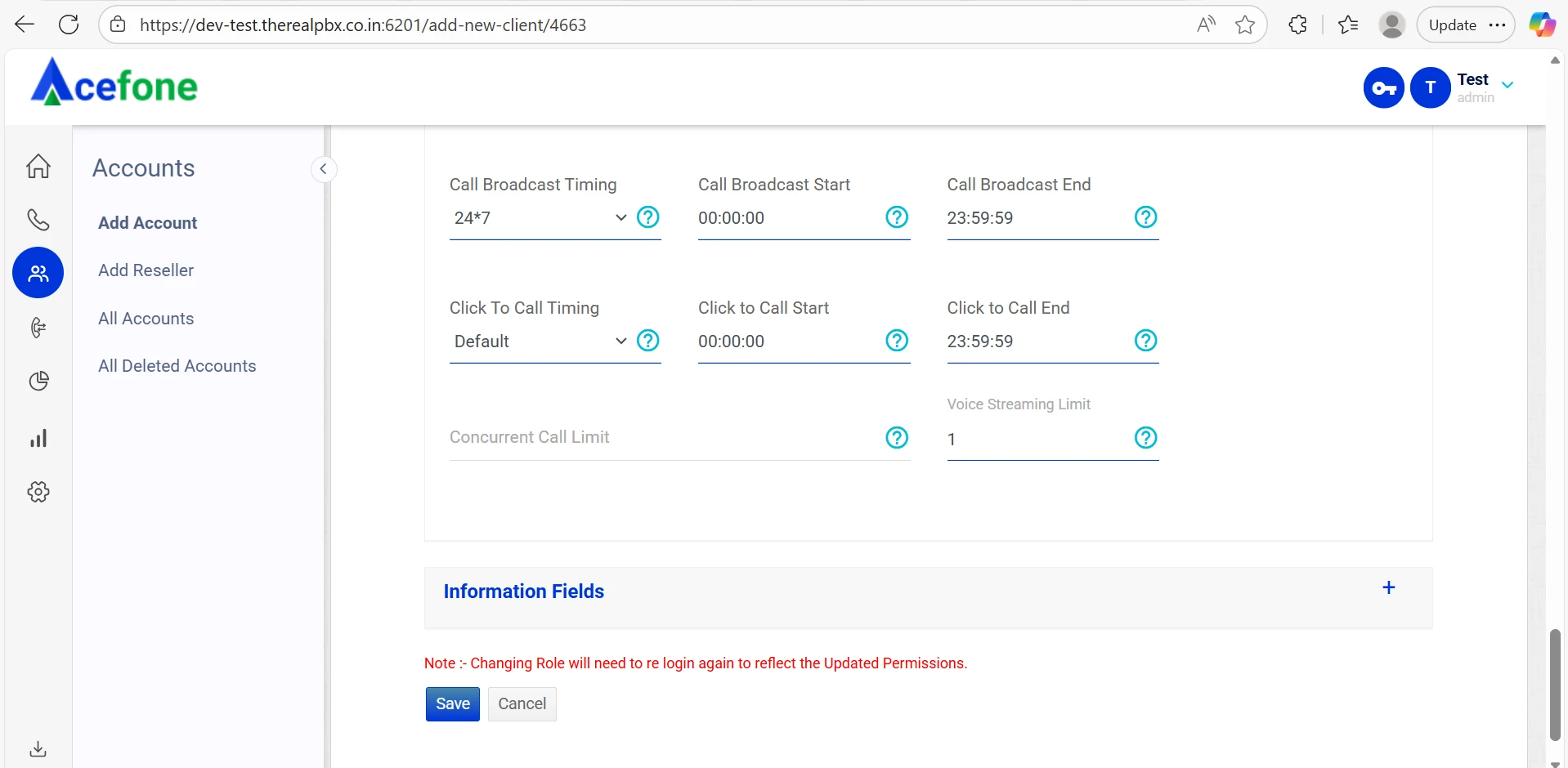
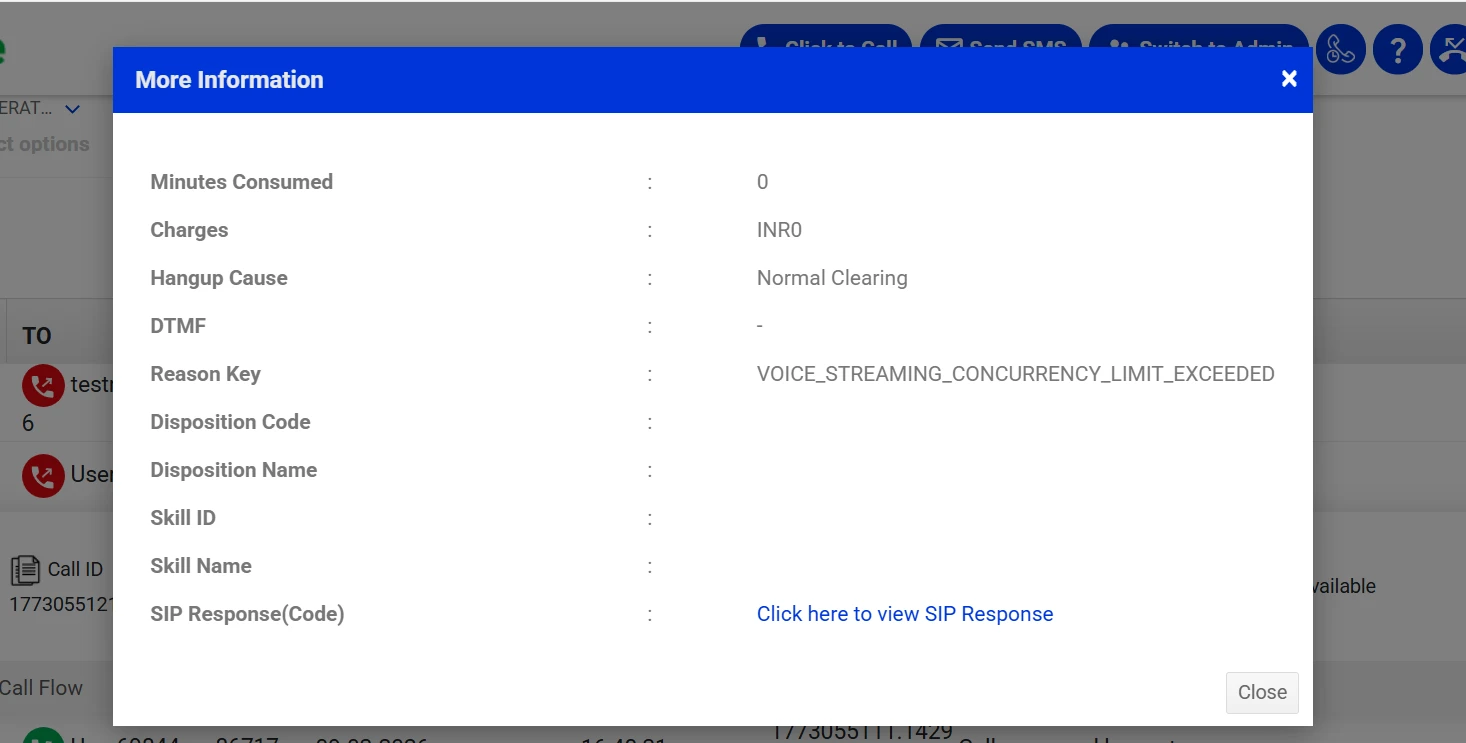
With this release, Super Admins can now configure a Voice Streaming Limit at the account level to define the maximum number of concurrent VOICE Streaming sessions allowed for a tenant. Any new session attempts beyond the configured limit will be rejected gracefully, with clear failure visibility for operations and support teams.
This enhancement introduces an important control layer for infrastructure protection, fair usage enforcement, and future packaging of concurrency-based plans.
What Are the Benefits?
- Platform Resilience
Prevents infrastructure overload caused by uncontrolled VOICE Streaming usage. - Fair Usage Enforcement
Ensures equitable distribution of resources across tenants and avoids monopolization by high-volume users. - Commercial Enablement
Establishes the foundation for tier-based concurrency plans, upsell packages, and usage-based monetization. - Operational Observability
Provides clear diagnostics and visibility into concurrency-related call rejections. - Improved Supportability
Helps support and operations teams identify when calls fail due to concurrency limit breaches instead of platform or bot-side issues.
How to Use (Step-by-Step)
- Go to All Accounts at the Super Admin level.
- Search for the concerned account using the available filters.
- Click Select an Action → Edit Account.
- Define the Voice Streaming Limit for the account.
- Click Save.
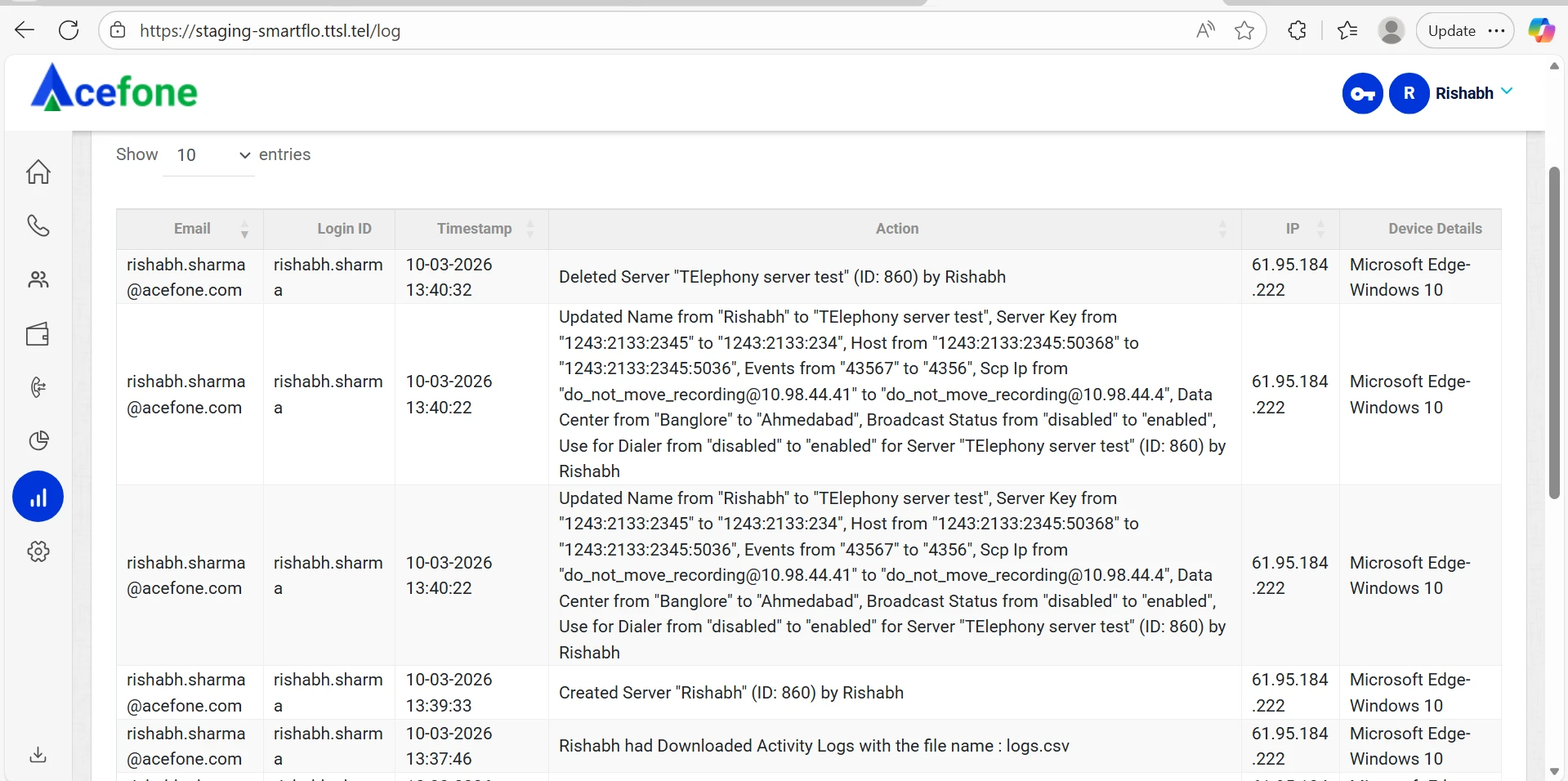
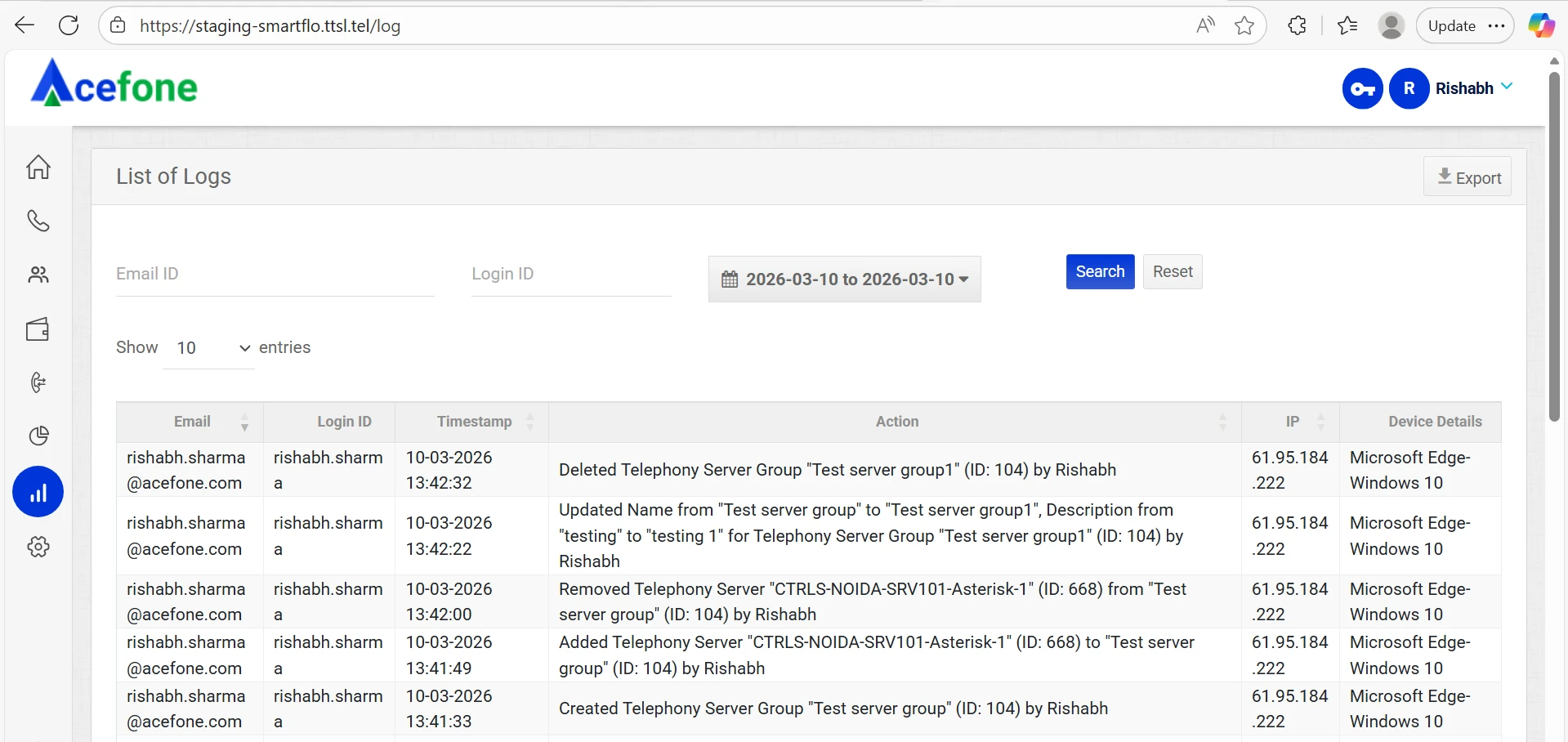
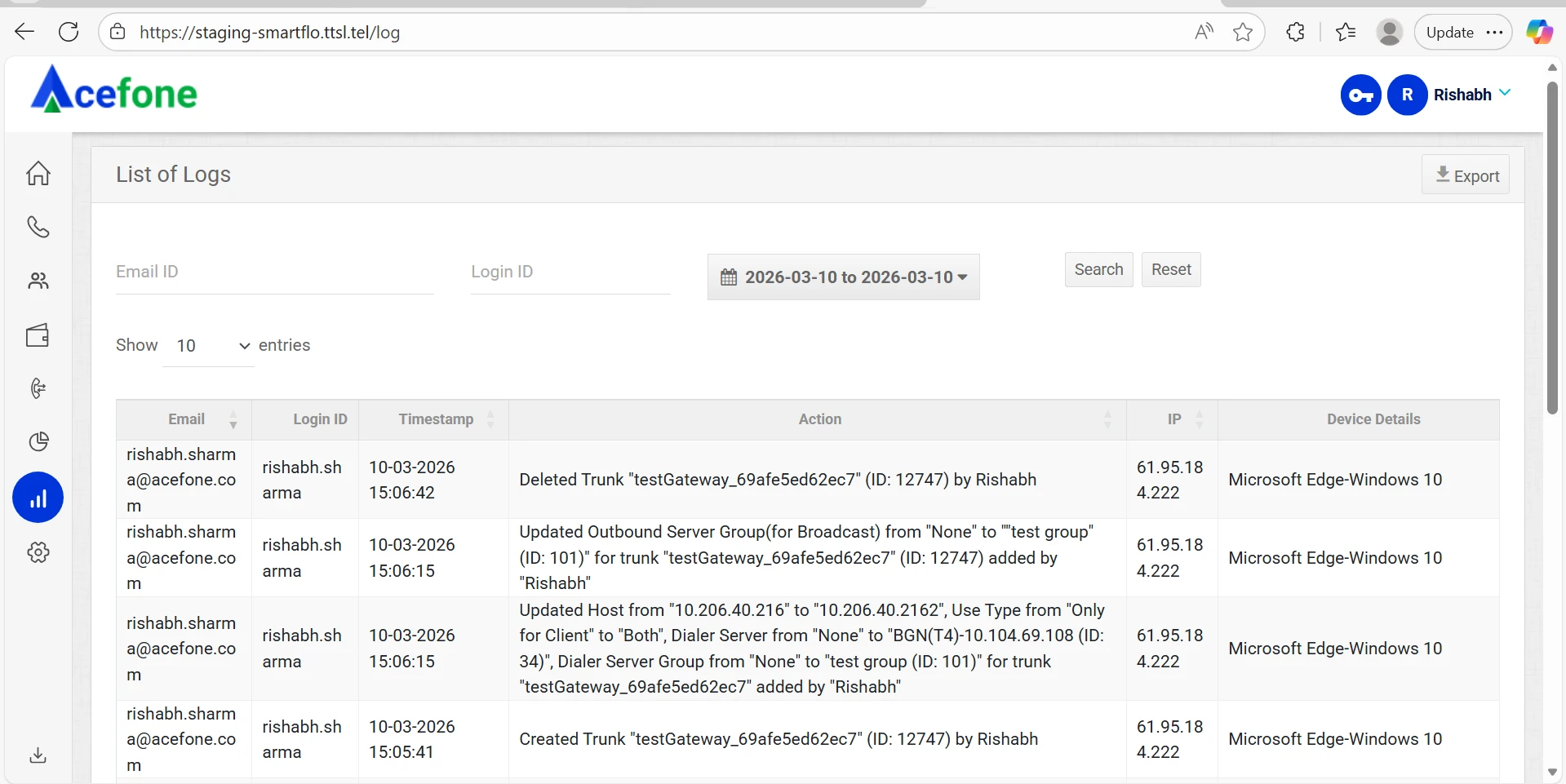
2. Implement Activity Logs for Telephony Resources
For: SUPER ADMIN
What It Is
We have introduced Activity Logs for Telephony Resources across the Super Admin panel to improve visibility and governance for critical telephony configuration changes.
Until now, CRUD operations performed on Gateways, Telephony Servers, and Telephony Groups were not being tracked through structured logs. This created gaps in observability, made troubleshooting harder, and reduced audit readiness.
With this enhancement, key changes across telephony resources are now captured in activity logs, including the user who performed the action, timestamp, resource details, and action description.
What Are the Benefits?
- Improved Observability
Provides complete visibility into changes made across telephony resources, making it easier to detect unexpected or incorrect updates. - Access Governance
Improves accountability by tracking which Super Admin performed a specific action and when. - Operational Accountability
Enables detailed traceability for troubleshooting, internal reviews, and audits. - Faster Root Cause Analysis
Helps Operations and Engineering teams quickly identify recent changes that may have impacted live telephony behavior.
How to Use (Step-by-Step)
- Go to Reporting at the Super Admin level.
- Click on Activity Logs.
- Search the logs using the Date Filter to identify changes made during a specific period.